

Why "FB Save" Means Two Different Things
Type "fb save" into a search engine and you will find two kinds of people asking the same question. Some want to keep a video inside Facebook so they can find it again tomorrow. Others want the actual file on their phone, so it plays without internet and never disappears.
Both are fair, and they need different tools. Mixing them up is the reason many people think they saved a video and then cannot find it on a flight.
We at SaveFBVid deal with the second kind every day, but this guide covers all three ways to do an FB save, so you can pick the right one.
Way 1: Facebook's Own Save Button
This is the quickest option, and it works for every video you are allowed to see, including private ones.
Step 1:
Find the video in your feed.
Step 2:
Tap the three dots in the top right corner of the post.
Step 3:
Choose Save video.
Step 4:
To find it later, open the Facebook menu and tap Saved.
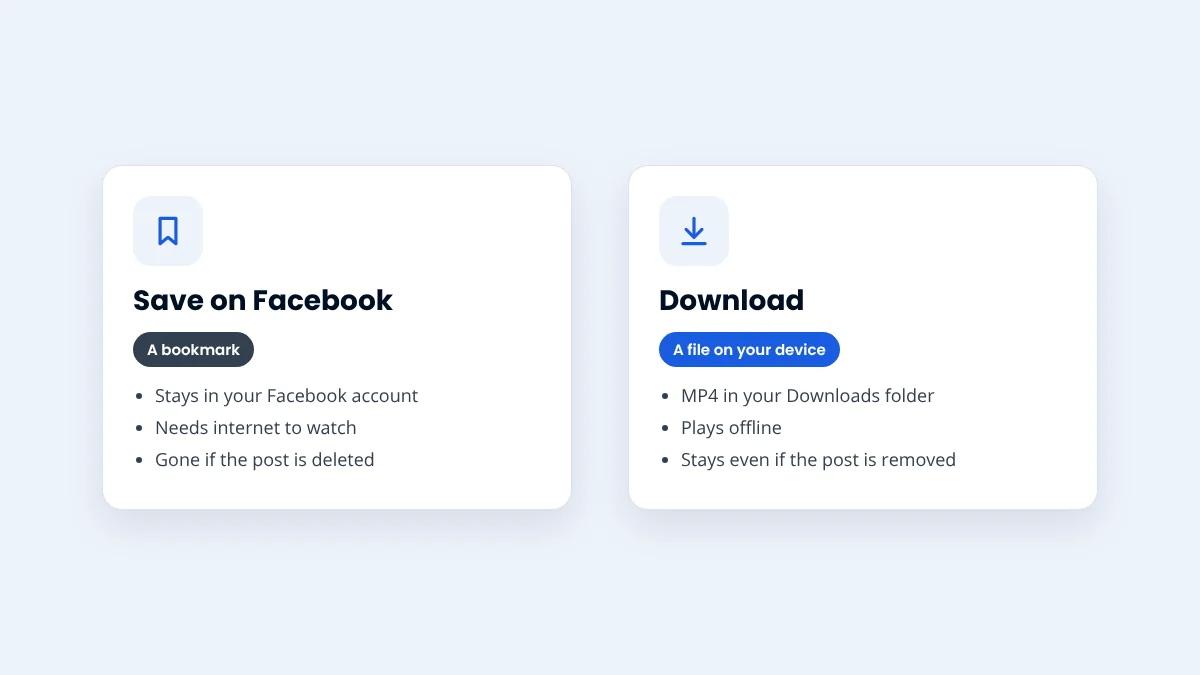
Keep in mind what this does and does not do. The video stays on Facebook's servers. You need a connection to watch it, and if the owner deletes the post or changes who can see it, it vanishes from your list too. Nothing is stored on your device.
Use it when you only want to come back to something later today.
Way 2: Save the File to Your Device
This is what most people really mean by FB save. You end up with an MP4 file that is yours to keep.
Now let's save our first file!
Step 1:
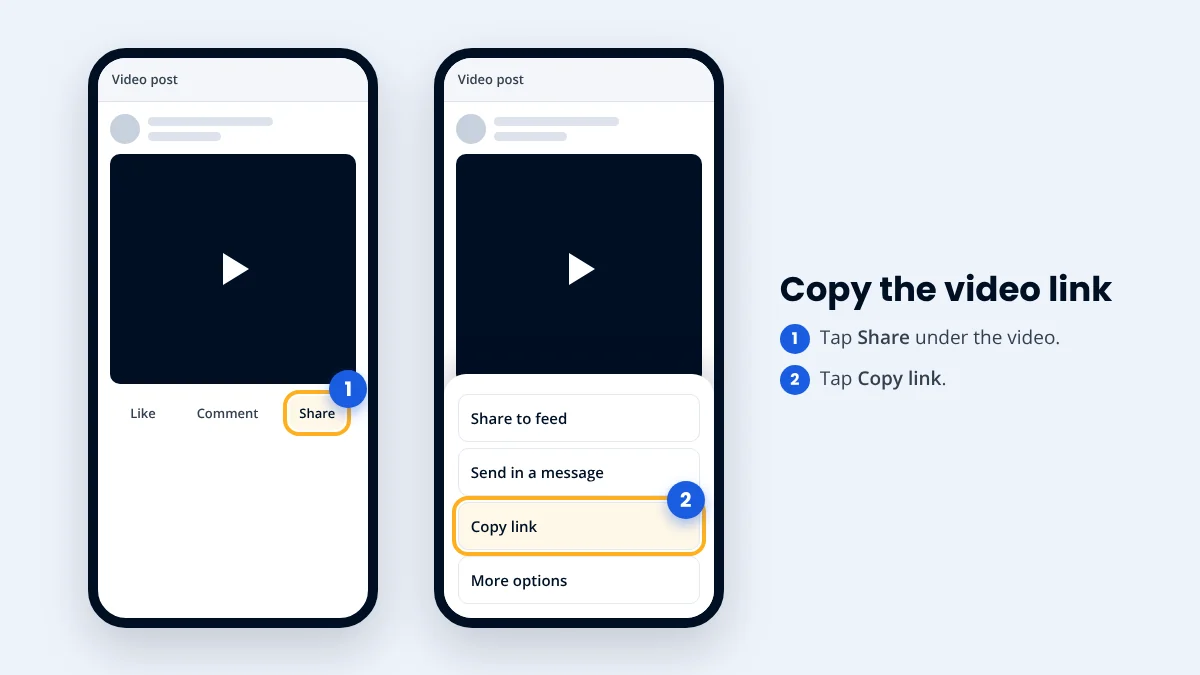
Open the video on Facebook and tap Share.
Step 2:
Tap Copy link.
Step 3:
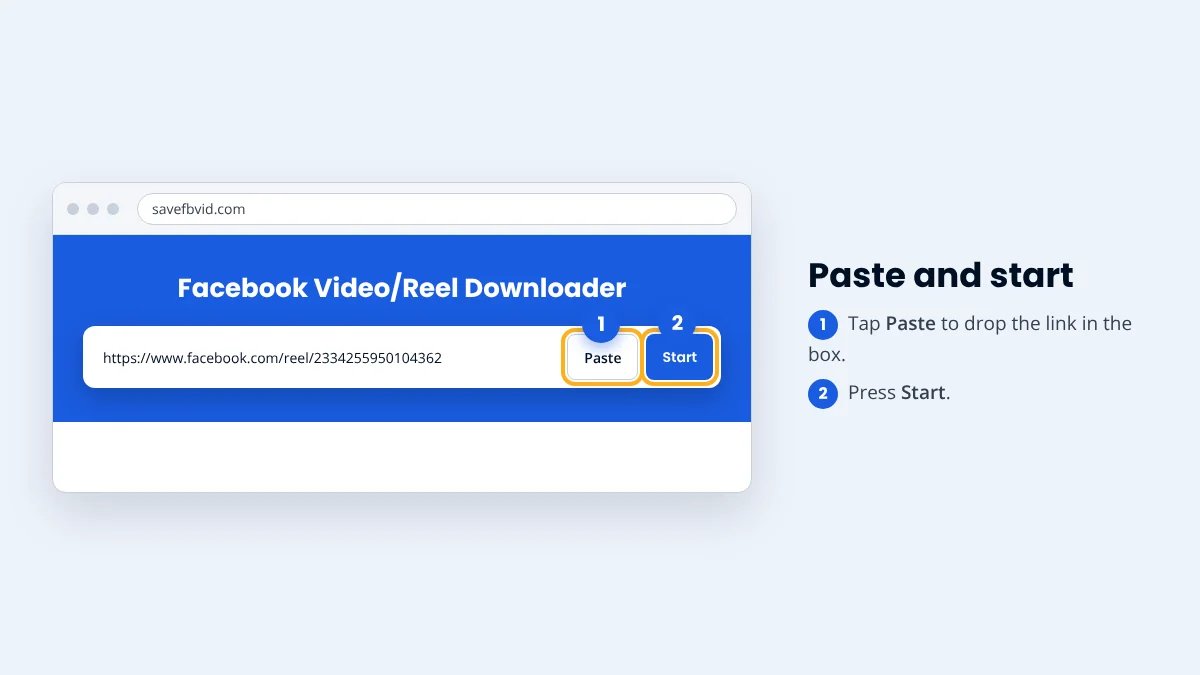
Open SaveFBVid.com in your browser.
Step 4:
Tap Paste, then press Start.
Step 5:
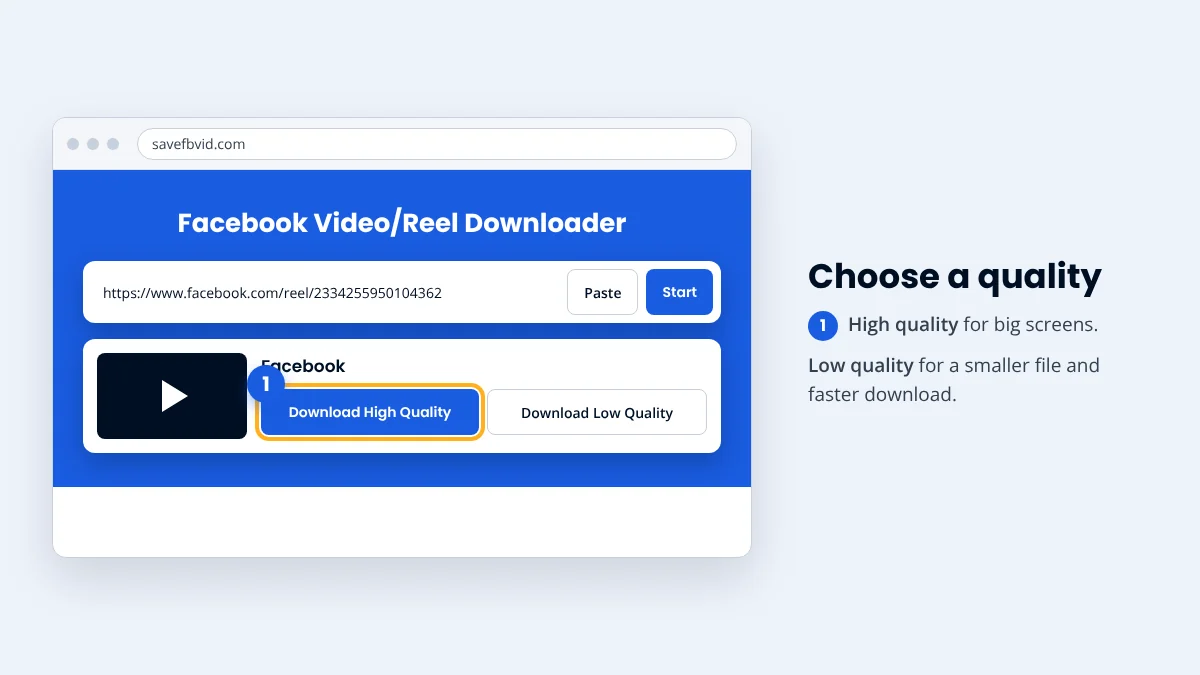
Choose Download High Quality or Download Low Quality.
The file lands in your Downloads folder. From there you can watch it offline, move it to another device or send it in any app.
If you are using a phone, follow the steps below to find it.
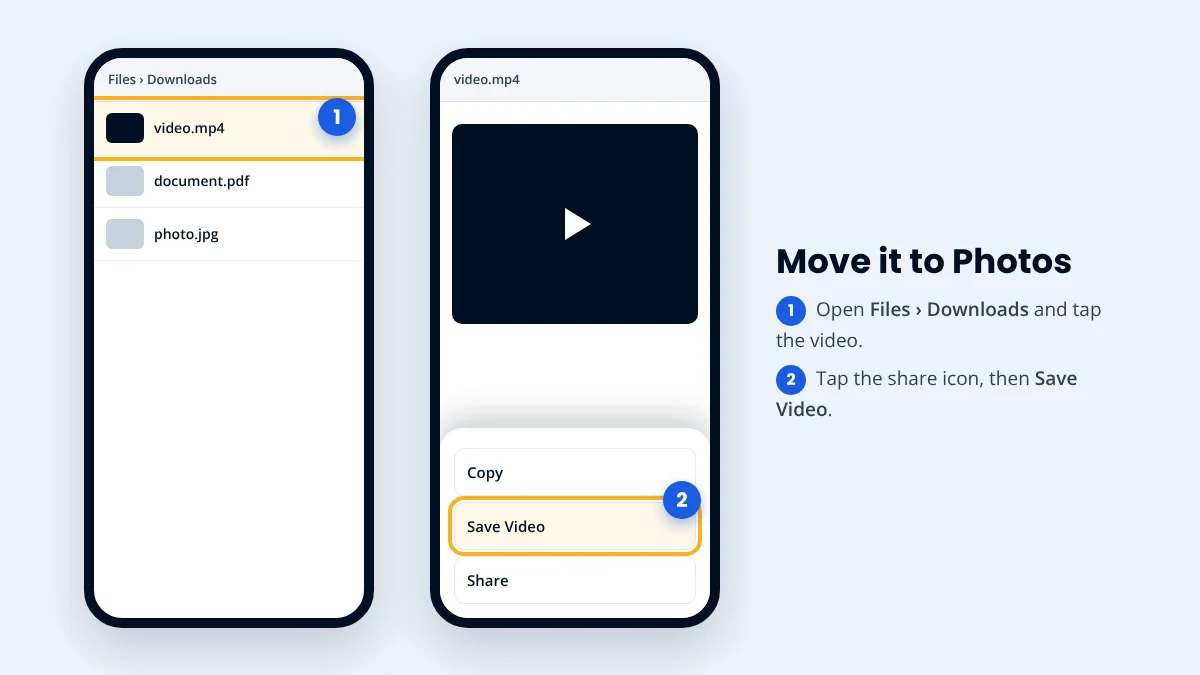
iOS device:
1. Open the Files app and tap Downloads.
2. Tap the video, then the share icon.
3. Tap Save Video to add it to Photos.
Android device:
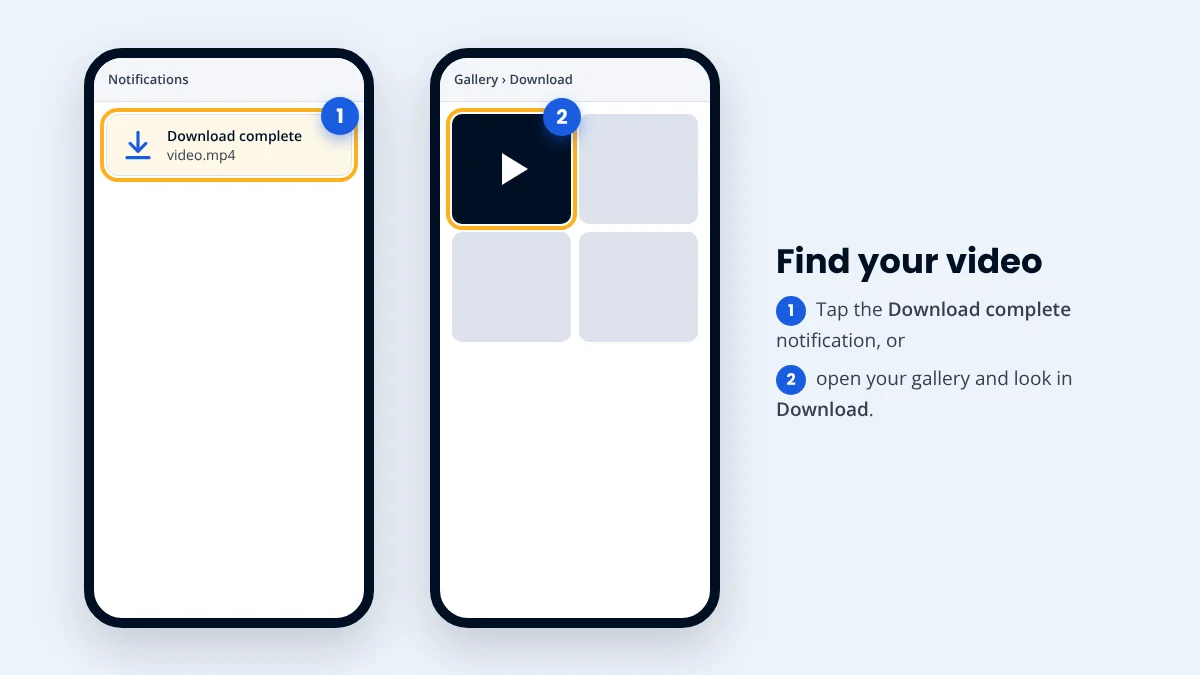
1. Pull down the notification shade and tap Download complete, or
2. Open your gallery and look in the Download album.
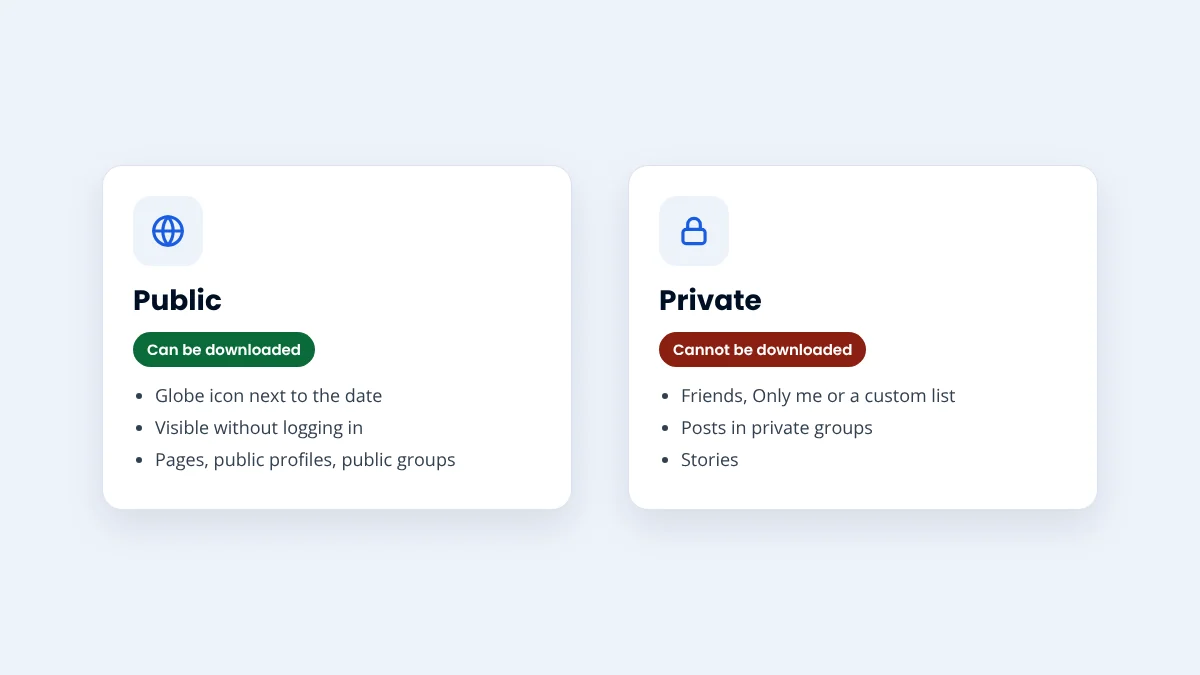
This way works for public videos and reels. It cannot reach videos limited to friends or posted in private groups.
Way 3: Download Your Own Uploads From Facebook
If the video is one you posted yourself, you do not need any outside tool.
Step 1:
Open the video on your own profile or page.
Step 2:
Open the three-dot menu on the post.
Step 3:
Choose Download video.
For a full backup of everything you ever uploaded, use Download your information in Facebook's settings. It includes videos that are not public and gives you the best quality Facebook has kept. The steps are in how to download your own Facebook videos.
Which Way Should You Use?
Use the Save button when the video is private or you just want a reminder.
Use an online downloader when you want the file: for offline viewing, for keeping, or for sharing outside Facebook.
Use Facebook's export when the videos are your own.
Many people use two of them together: Save while scrolling, then download the ones worth keeping when they are on Wi-Fi.
High Quality or Low Quality?
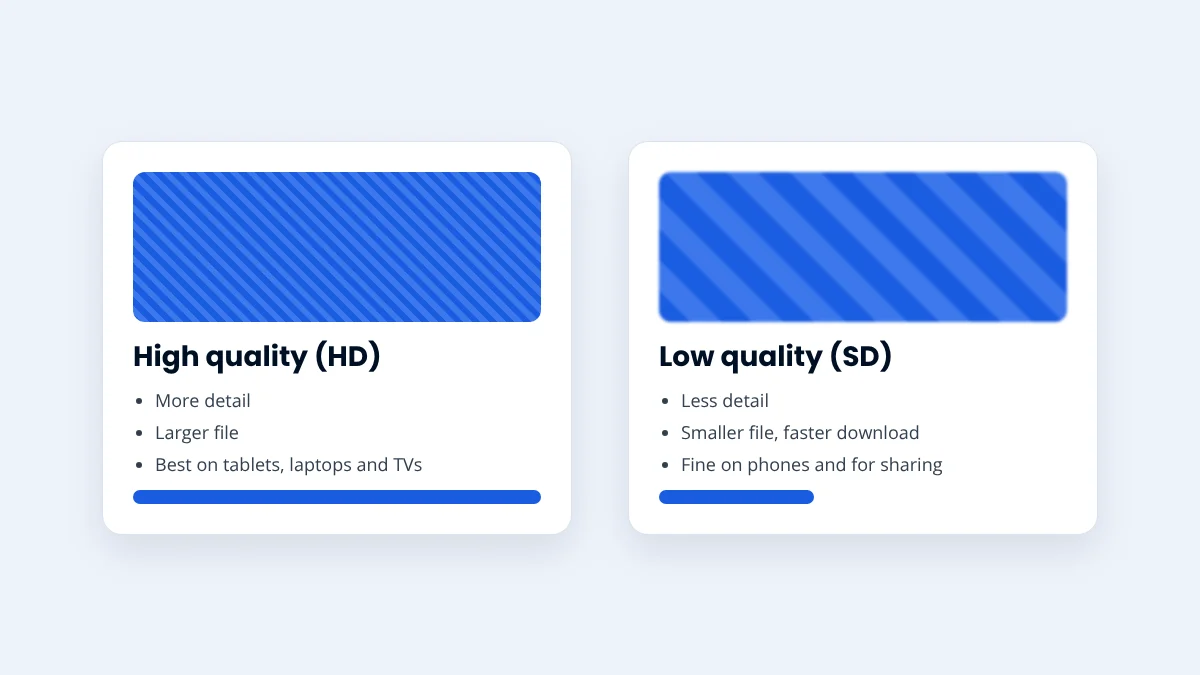
When you save the file you get a choice. High quality looks better on big screens and takes more space. Low quality is smaller, downloads faster and is fine on a phone.
Common Questions About FB Save
Does the owner know I saved their video?
No. Facebook does not notify people when you use the Save button, and it does not notify them when a public video is downloaded.
Where do my saved files go?
To the Downloads folder of your device. On phones the video usually shows up in the gallery as well; on iPhone it starts in the Files app.
Can I FB save a reel?
Yes, with exactly the same steps. See how to download Facebook Reels online.
Can I download videos from my Saved list?
Yes, if they are public. Open the video from your Saved list, copy its link and paste it into SaveFBVid.
Is there a limit?
SaveFBVid is free and has no sign-up. Please save only videos you have the right to keep.
Why did a video disappear from my Saved list?
The owner deleted it or changed its audience. This is the main reason people switch to downloading the file.
Keeping Your Saved Videos Organised
Saving is easy. Finding things again is the hard part. A little structure helps.
Inside Facebook
The Saved section lets you create collections. Make one for each topic, such as recipes, travel or tutorials, and add videos to a collection when you save them. You can keep a collection private or share it with friends.
On your phone
Create albums in your gallery and move downloaded videos into them. On iPhone, remember that downloads start in the Files app; move them to Photos first if you want them in an album.
On your computer
Make one folder for downloaded videos and give files a name you will recognise in a year. "pasta-recipe.mp4" is easier to find than a string of numbers.
When an FB Save Goes Wrong
"I saved it, but it is not on my phone"
You used Facebook's Save button. That is a bookmark, not a file. Download the video if you need it offline.
"The download button opened the video instead"
That is normal in some browsers. Use the three dots on the player and choose Download, or press and hold the video on a phone.
"The tool could not find my video"
Check that the post is public and that you copied the whole link. A link that was typed or cut off will not work.
"My phone says there is no space"
Delete videos you have finished with, or choose low quality next time. Video takes more room than anything else on most phones.
Over to You
Bookmark it, download it, or export it: now you know which FB save is which. And you can use SaveFBVid.com to save your copied video as a file!
Releated Posts
 Can You Download Private Facebook Videos? What Actually Works
 How to Save a Facebook Video Online on Any Device
 How to Download Facebook Reels Online (Step by Step)
Comments
No comments yet.
Leave a Comment
Your email address will not be published.