
Android makes saving a Facebook video simple, because Chrome can download files directly and your gallery picks them up automatically.
Step 1: Copy the link in the Facebook app
- Open the video or reel.
- Tap Share.
- Tap Copy link.
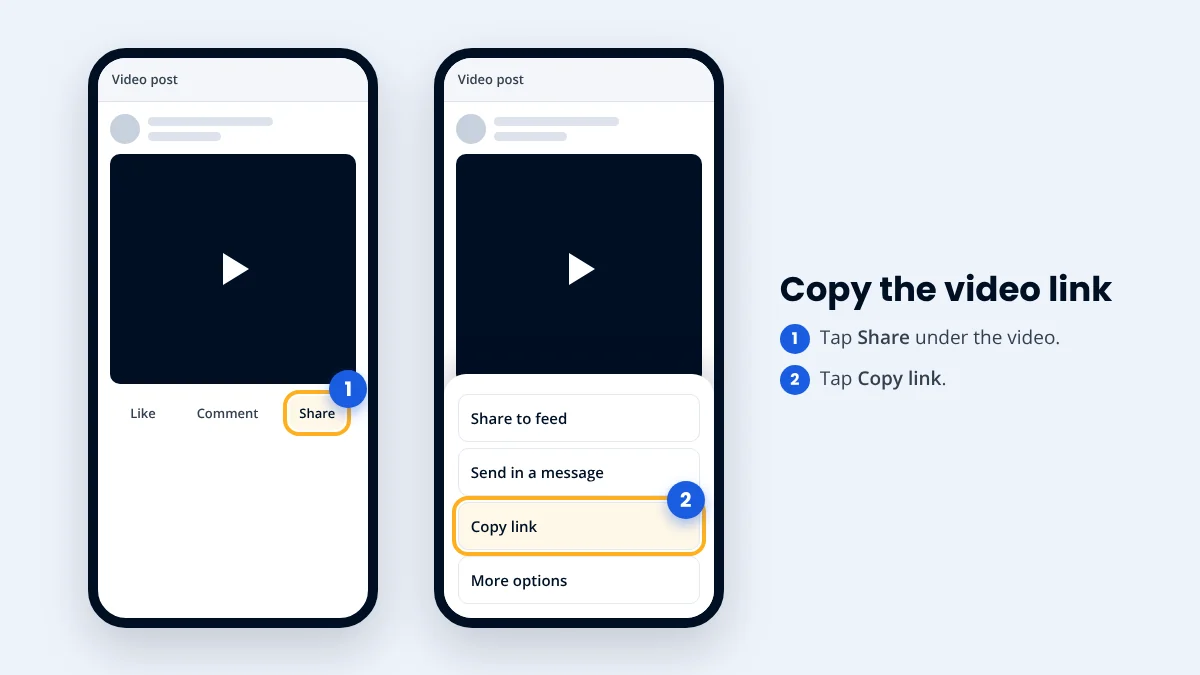
In Facebook Lite the option may sit under the three-dot menu instead.
Step 2: Paste it into the downloader
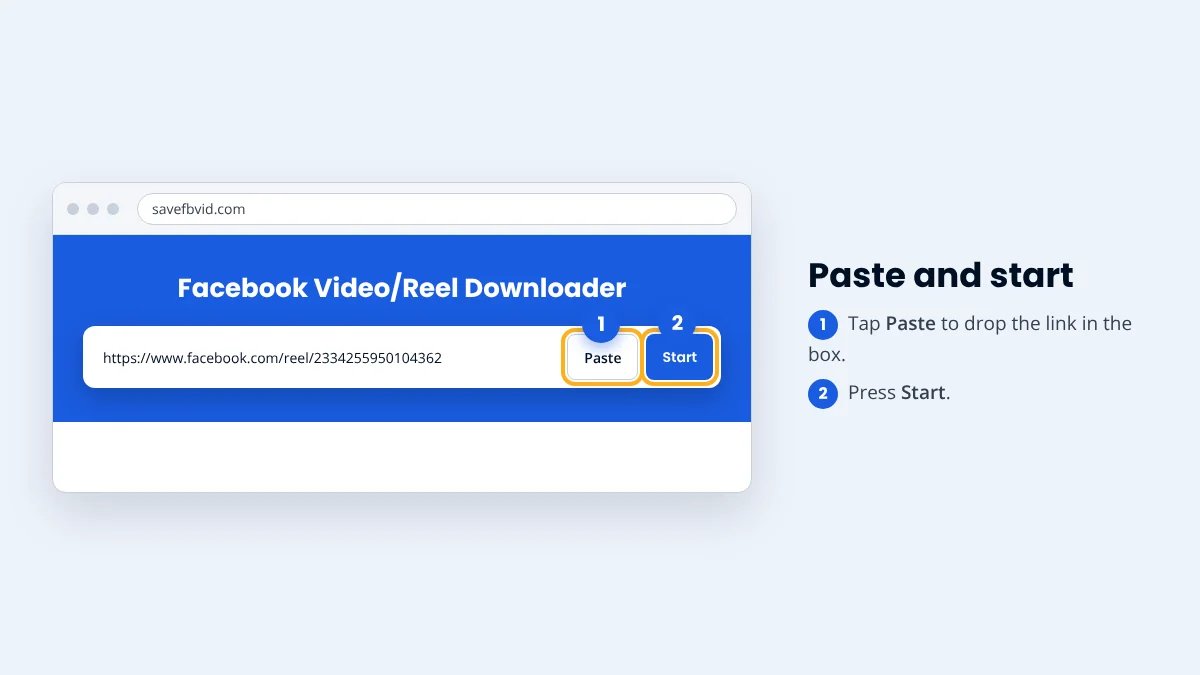
- Open Chrome and go to SaveFBVid.
- Tap Paste. If Chrome asks for permission to read the clipboard, allow it, or long-press the box and choose Paste.
- Tap Start.
Step 3: Save the video
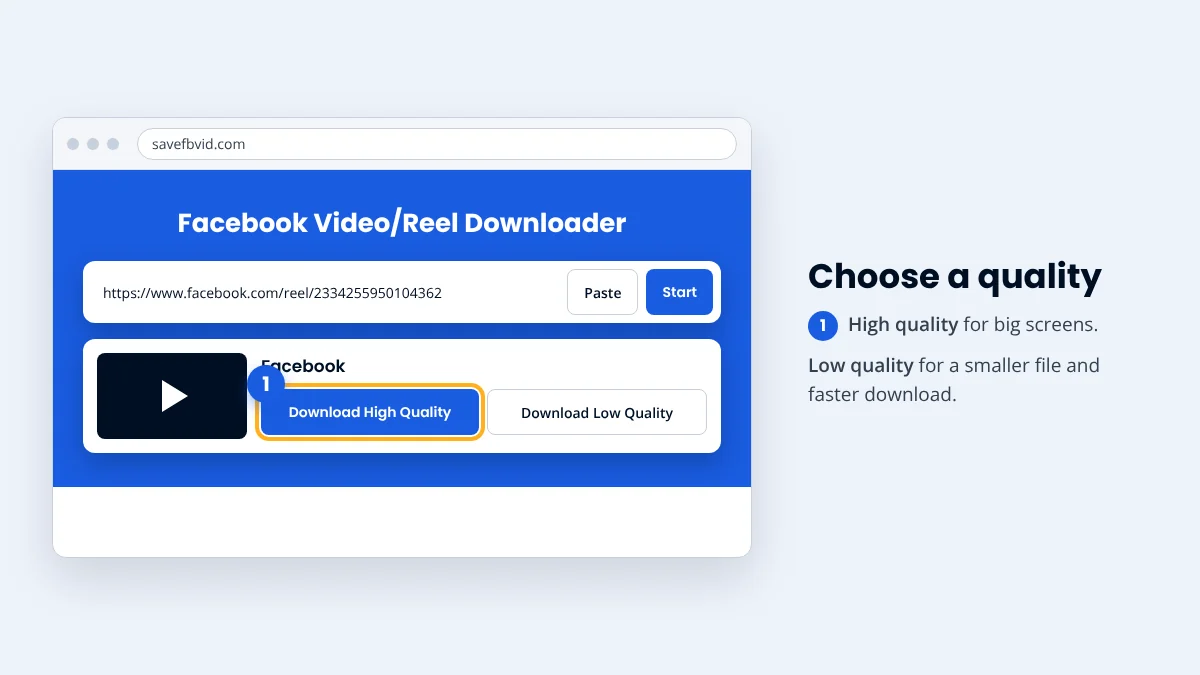
- Tap Download High Quality or Download Low Quality.
- The video opens in a new tab. Tap the three dots on the video player and choose Download.
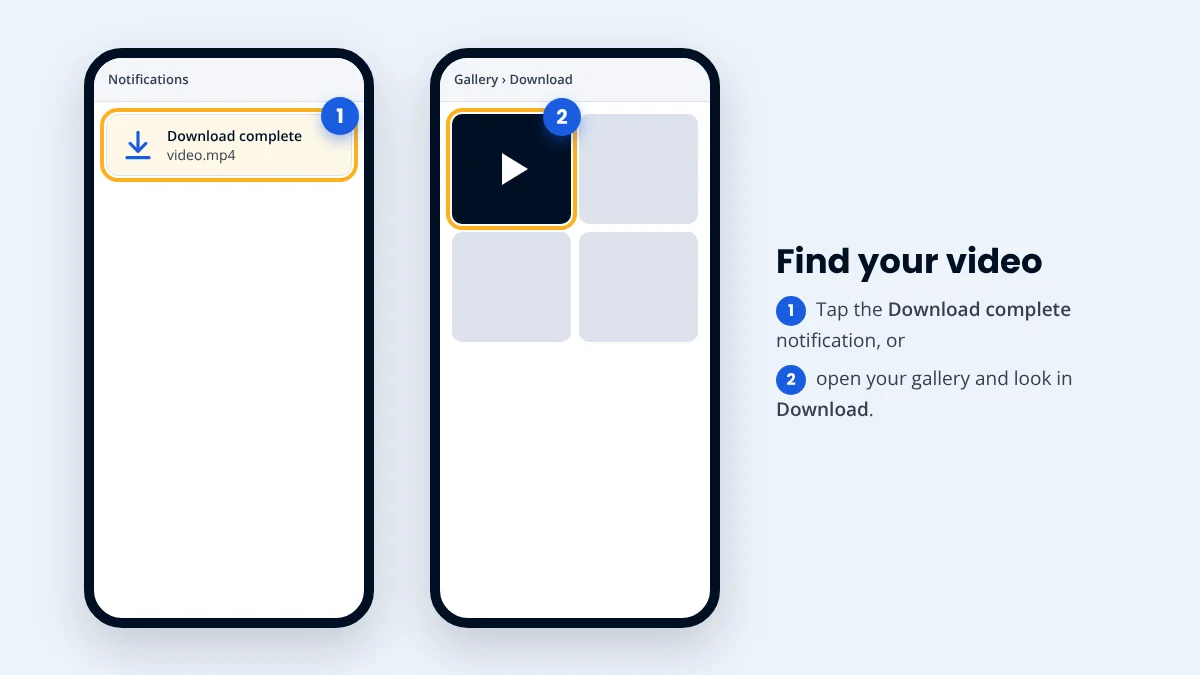
- Chrome shows a notification when the download is complete.
Where to find the video
- In your gallery or Google Photos, usually in a Download album
- In the Files app under Downloads
- In Chrome: three-dot menu, then Downloads
Tips for Android users
- Save mobile data: choose low quality when you are not on Wi-Fi.
- Running out of space? Move videos to an SD card or cloud storage from the Files app.
- Samsung Internet, Firefox and Edge work the same way as Chrome.
Common problems
The Paste button does nothing
Some browsers block clipboard access. Long-press inside the box and choose Paste.
The video plays instead of downloading
Use the three dots in the corner of the player and choose Download.
"We could not get a valid response"
The video is probably not public. See can you download private Facebook videos.
Do I need an app?
No. Apps for this job often ask for more permissions than they need. A browser tool does the same thing without access to your phone. See download Facebook videos without an app or extension.
Releated Posts
 How to Download Facebook Videos on iPhone and iPad
 Looking for a KeepVid-Style Facebook Downloader? What to Check First
 Online Video Downloader for FB: How It Works Behind the Scenes
Comments
No comments yet.
Leave a Comment
Your email address will not be published.