

Downloading a Facebook video puts a file on your phone, but it does not always land in your photo library. Here is how to get it into your camera roll on iPhone or your gallery on Android.
First, download the video
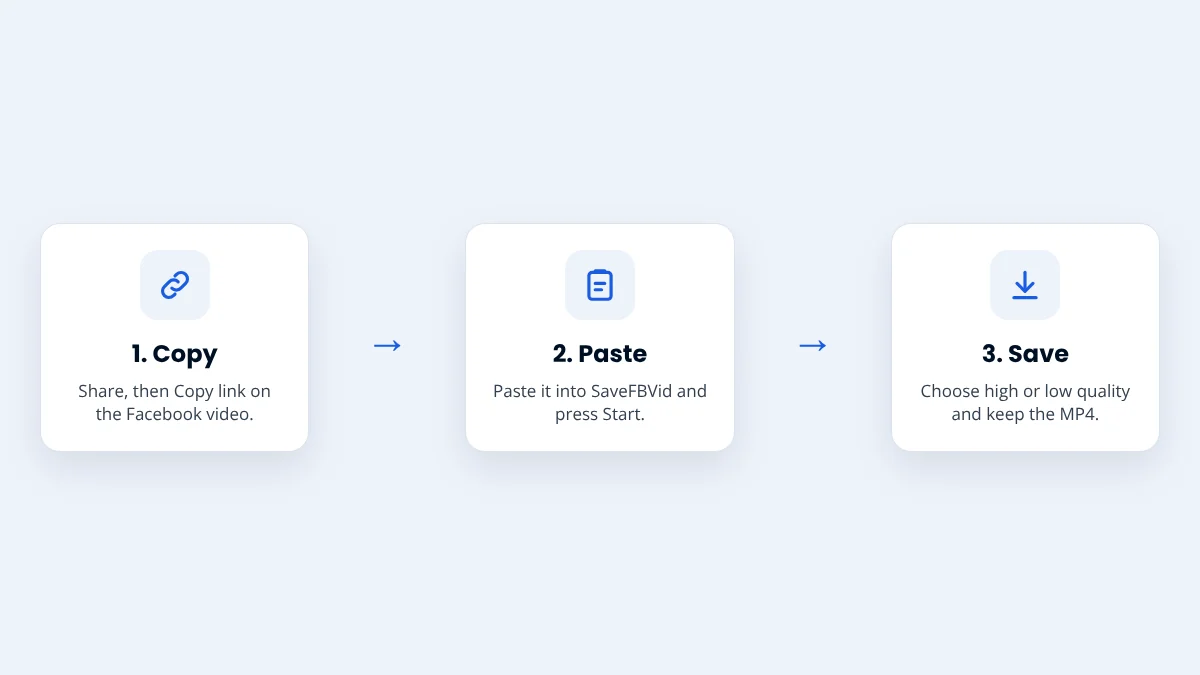
- Copy the video link from Facebook.
- Paste it into SaveFBVid and tap Start.
- Choose a quality and download the file.
iPhone: move it from Files to Photos
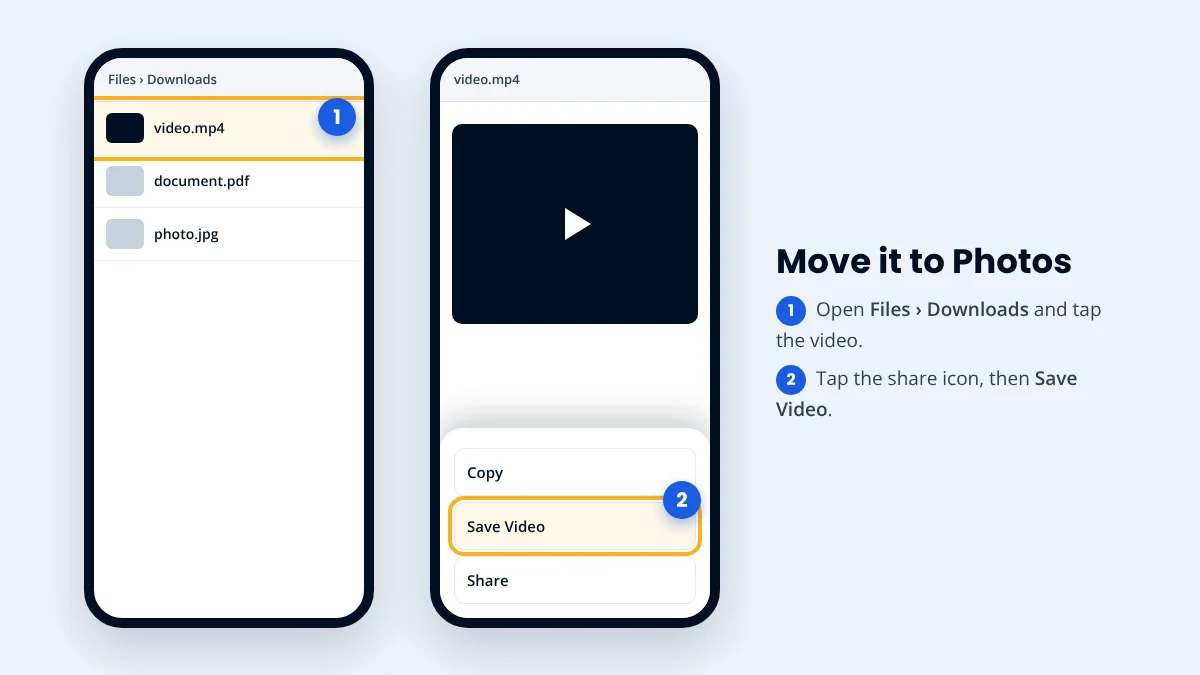
- Open the Files app.
- Go to Downloads.
- Tap the video.
- Tap the share icon.
- Tap Save Video.
It now appears in Photos under Recents. You can delete the copy in Files to free up space.
Android: it is usually already there
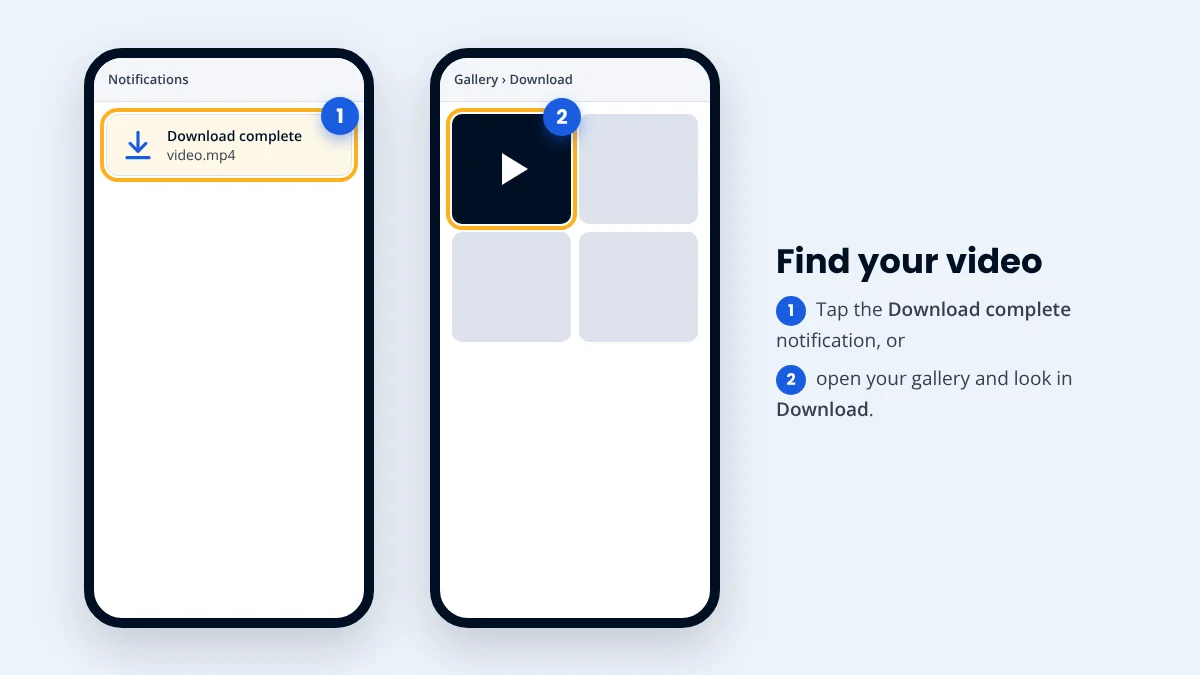
Most Android phones scan the Downloads folder automatically. Open your gallery or Google Photos and look for a Download album.
If it does not appear:
- Open the Files app.
- Find the video in Downloads.
- Tap the three dots and choose Move to, then pick the DCIM or Pictures folder.
Why a video might not show in your library
- The download did not finish. Check the browser's download list.
- The file is still in a cloud folder. Wait for it to sync.
- The gallery app hides the Downloads folder. Look in its settings for folders to show.
Sharing from your camera roll
Once the video is in your library you can send it in any app. Messaging apps compress video, so low quality is often enough; see HD vs SD.
Full device guides
Releated Posts
 How to Download Your Own Facebook Videos (Full Backup)
 How to Download Facebook Live Videos After the Stream Ends
 Facebook Video Download: HD vs SD, and Which to Choose
Comments
No comments yet.
Leave a Comment
Your email address will not be published.